Branching & Worktrees
Give a mission a dedicated git branch, and optionally an isolated worktree, so agent work stays organized and never collides with your main checkout.
Overlord can give each mission a dedicated git branch, and optionally an isolated worktree so an agent's uncommitted changes never collide with your primary checkout. Both are opt-in and configurable from the branch panel or the CLI.
Mission branches
A mission branch is a normal git branch, scoped to one mission so every objective in that mission accumulates work in the same place instead of drifting across ad hoc branches.
Branch naming:
<mission-title-slug>-<mission-sequence>
Once a branch is created for a mission, it is recorded on the mission (missions.active_branch)
and reused on the next launch. If that branch is later merged or deleted, the next launch starts
a new cycle with a numeric suffix (-2, -3, ...) instead of colliding with the old one.
The branch panel
The branch panel is where you choose how a mission's work lands in git before you run it. Open it from the branch selector on a mission.
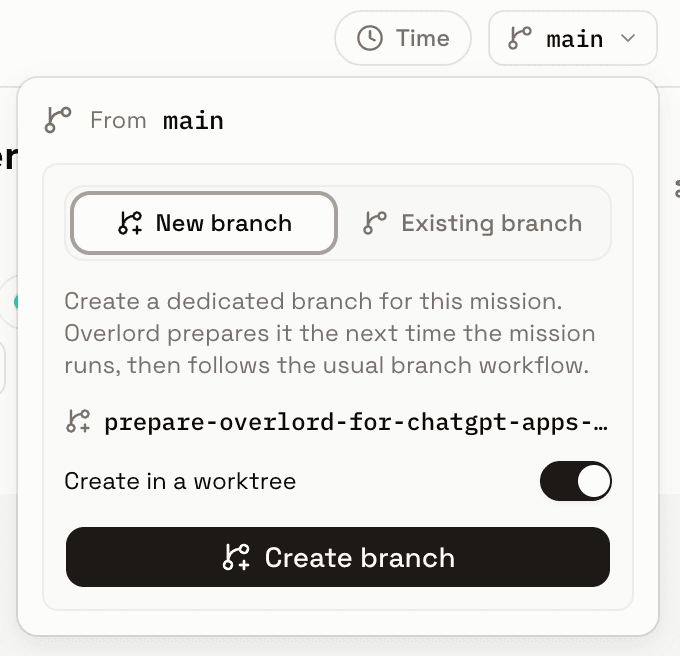
- From <base branch> — the branch the new work will be created from, shown at the top of the panel.
- New branch — generates a branch name from the mission title and lets you create it now. Overlord prepares the branch the next time the mission runs, then follows the usual branch workflow.
- Existing branch — point the mission at a branch that already exists instead of creating one.
- Create in a worktree — toggle this on to also check the branch out into an isolated worktree rather than switching your primary checkout.
Worktrees
A worktree is a separate working directory backed by the same git repository, so an agent can have its own checked-out branch and uncommitted changes without touching whatever is checked out in your main folder.
Worktree branch automation is disabled by default; turn it on per mission from the branch
panel, or globally from the Worktrees settings page. When enabled, ovld runner prepares the
mission's branch and worktree after resolving the working directory and before launching the
agent:
~/.ovld/worktrees/<project-slug>/<resource-key>/<branch-name-with-slashes-flattened>
The path is scoped per resource, so two objectives in the same mission can share a branch name across different repository checkouts without colliding.
Worktree preparation is never destructive:
- Your main checkout is never stashed, reset, or force-checked-out.
- An existing worktree at the planned path is reused only if it is already a git worktree checked out on the expected mission branch.
- A dirty reused worktree is fine — later objectives in the same mission can pick up right where the last one left off, uncommitted changes and all.
After preparation, the runner records the resolved branch on the mission and logs a human-readable audit entry.
Overriding from the CLI
The branch panel controls the default for a mission, but any launch or runner invocation can override it:
# Force a specific branch for this launch
ovld launch <agent> --mission-id <missionId> --branch <name>

# Skip worktree preparation and run in the resolved working directory
ovld launch <agent> --mission-id <missionId> --no-worktree

# Same flags are available on the runner
ovld runner once --branch <name>
ovld runner start --no-worktree
--no-worktree still checks out the mission branch (or the resolved directory's current branch)
but skips creating or reusing a separate worktree.